
18/6/2020
Esteban Jimenez
How to capture packets (PCAP)
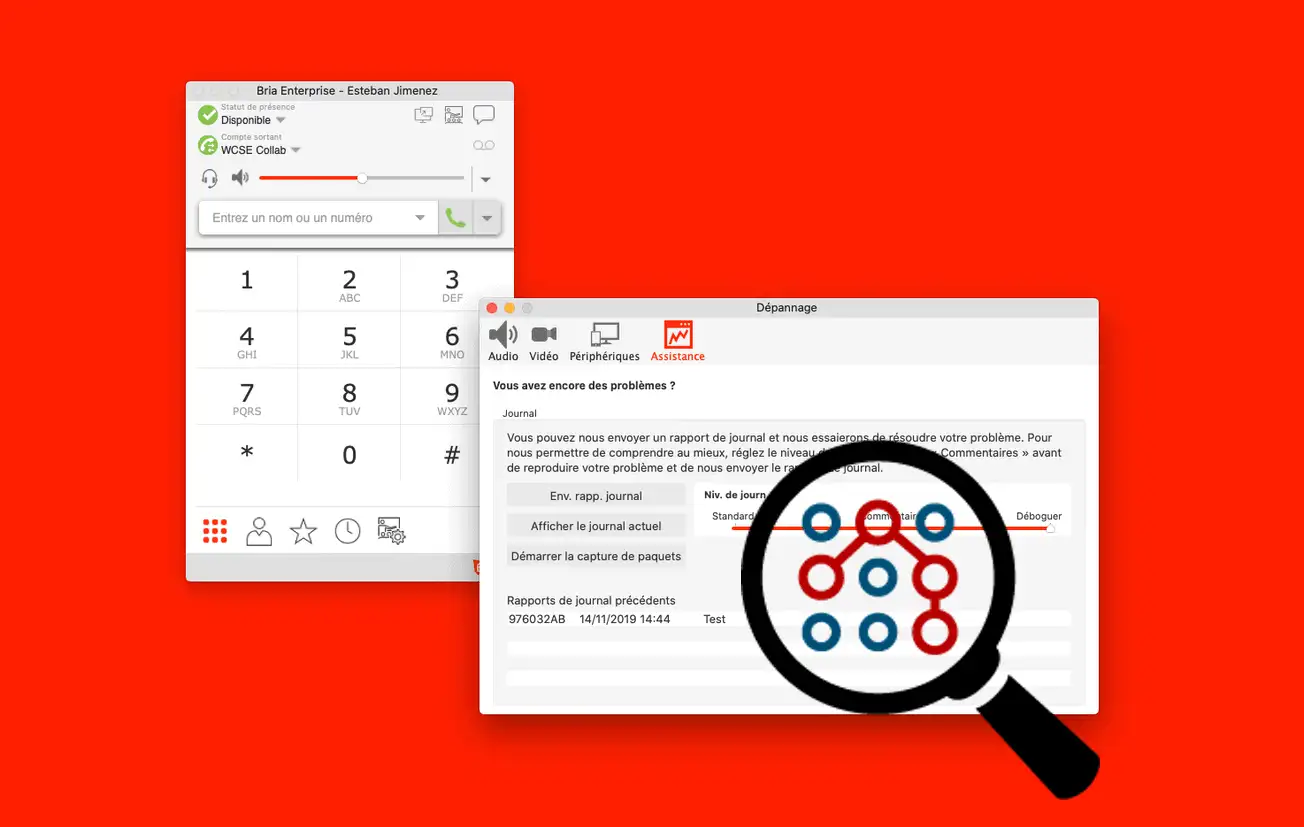
Bria Enterprise now includes a utility for capturing packets (PCAP) directly from your softphone. In the event of an application malfunction, this will detect all packets received and sent by your computer, enabling a more complete analysis of the problem than using Bria's traces alone.
Here's how it works:
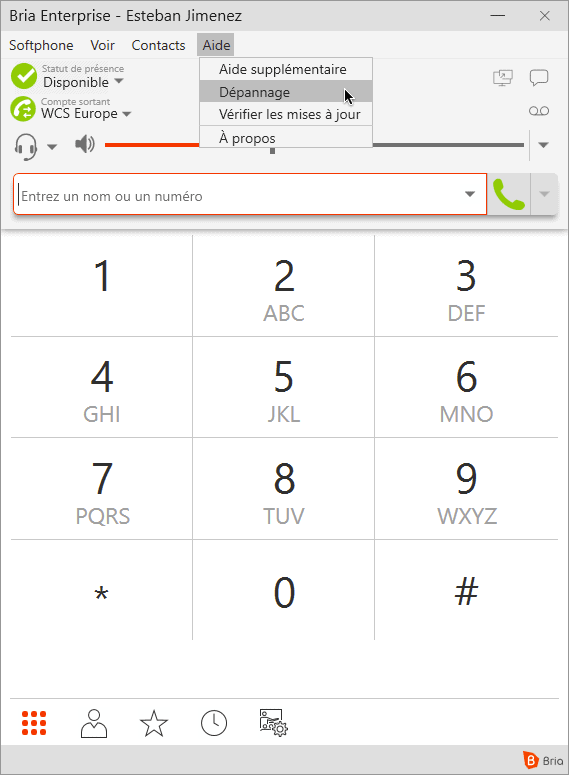
1. Open troubleshooting menu
Click on "Help", then on "Troubleshooting".
2. Go to Support menu
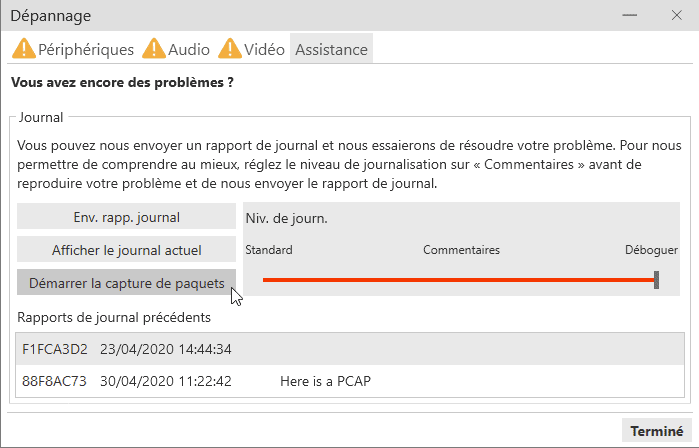
In the menu list at the top of the window just opened, open the "Support" tab.
3. Open PCAP utility
Click on "Start packet capture".
On macOS, this button is normally grayed out. Please refer to the macOS menu below to activate the feature.
Windows
4. Enable packet capture
To use this feature, you need to install a package capture utility. To do so, click on "Enable package capture". The installation utility opens.
Note: If you've already installed the PCAP utility on your computer, or if you've installed Wireshark, you'll be shown "Start capture" rather than "Enable packet capture". In this case, you can go directly to step 6.
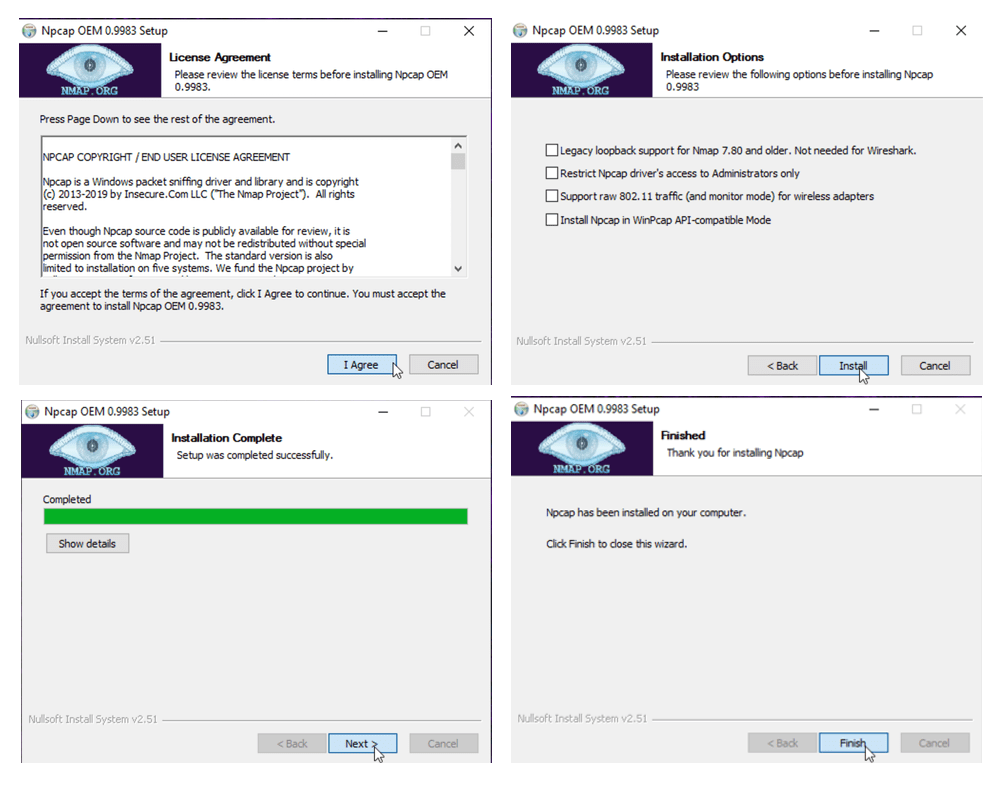
5. Installing the NPCAP utility
- Once the installation utility is open, read and accept the license agreement by clicking on "I Agree".
- On the next screen, don't tick any boxes unless you know what you're doing and need one of the options shown.
- Click on "Next", and when the installation shows "Completed", click on "Next" again.
- At the next stage (Finished) you can close the utility by clicking on "Finish".
macOS
4. Enable packet capture
On macOS, you need to install the Wireshark software, containing the PCAP user, to use Bria's Packet Capture. You can download it here.
5. Install Wireshark
Once you've downloaded Wireshark, install it by following the application's instructions.
Restart Bria Enterprise. The "Start packet capture" button should no longer be grayed out.
6. Start capture
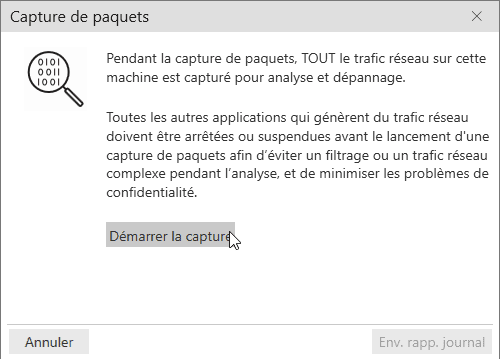
Click on "Start capture". Once the capture has started, use Bria Enterprise as normal and reproduce the bug for which you need assistance.
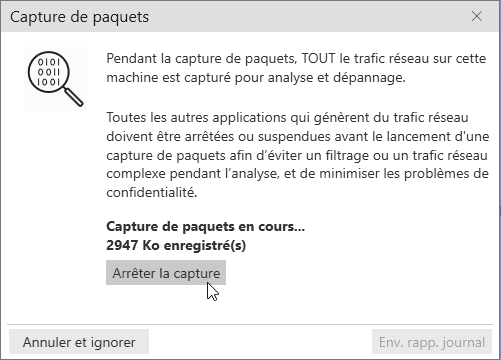
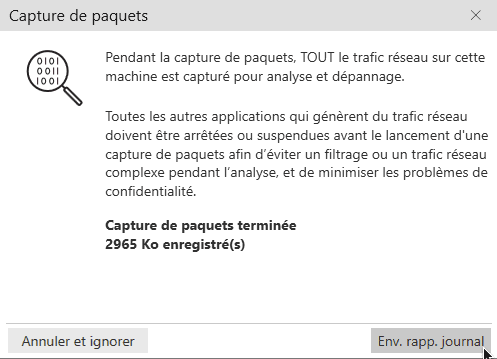
Once you have finished, click on "Stop capture" and then on "Send log report".
7. Send capture
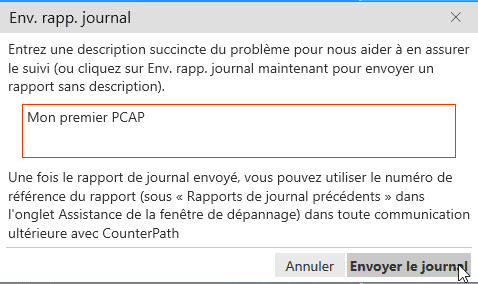
A window allows you to add a description to the packet capture you have just made. Here you can indicate what the problem is, under what conditions it occurs, etc.
8. Send us your PCAP
Packet capture is now complete. Bria Enterprise has automatically assigned an ID to your packet capture. To make it easier for us to find it, you can make a note of your packet capture ID and send it to us.
