
12/3/2021
Loris Viana
Configuring a contact with BLF presence

Bria Enterprise allows you to retrieve the presence of any user associated with a SIP account. This function is often referred to by the acronym BLF (Busy Lamp Field). To do this, the SIP server must support RFC 3856 or RFC 6914.
This feature makes it possible to display the status of any number in the company, regardless of the device used. It requires Bria Enterprise Standard Bundle licenses.
Note: The "accountN.desk.feature.sipFeatures.control" attribute must be set to enable presence (at 12, 13 or 45).
The above attribute is a bitmask with 3 possible values that can be added together to activate all of them.
1 = Audio call
12 = Presence and instant messaging
32 = SMS
Example: To activate presence and audio calls, add 1 and 12, i.e. 13.
Creating contact with presence :
1. On the Bria client, create a contact by going to "Contacts > add a contact" or to the 2nd tab at the bottom, then click on the button on the right, as shown in the screenshot. A new window should appear.

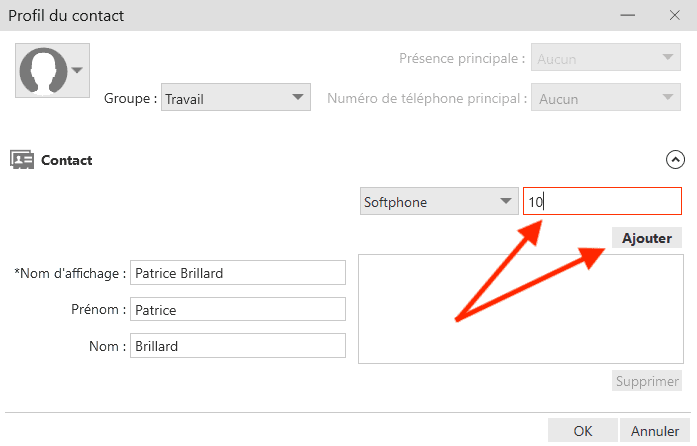
2. On this window, fill in the contact's details, choose the group you want to add the contact to, then enter his SIP ID in "Softphone" on the right. Click on "Add".
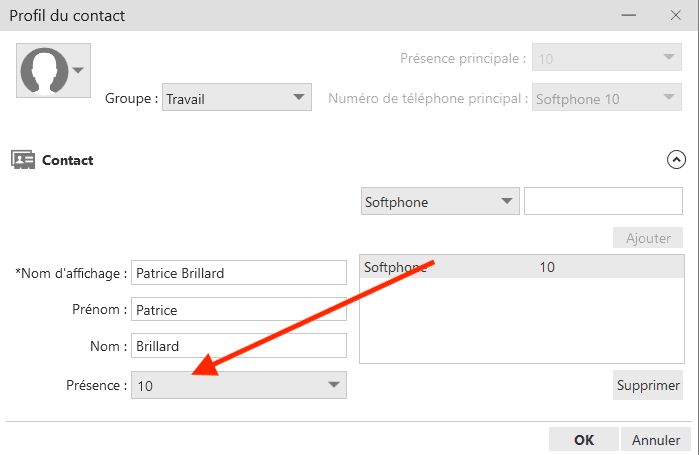
3. When the SIP ID is added, you should see a presence field appear at bottom left. If it's not pre-filled with the ID, do so. You can now save your contact.
4. Once the contact has been created, Bria will query the server to retrieve the presence. After a few seconds, the icon should change to represent the extension "s status. you are now supervising the extension.
