
22/6/2020
Loris Viana
Creating and sending log files
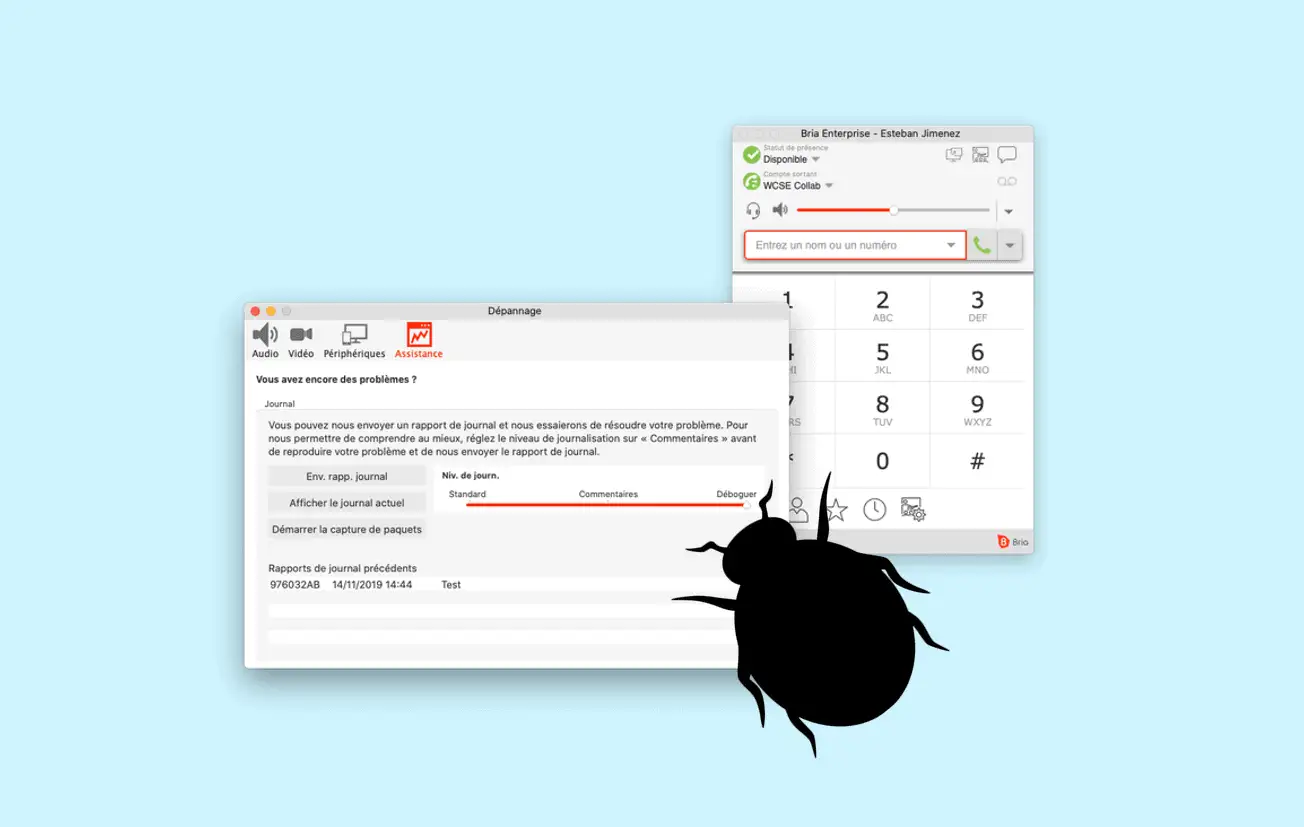
To help you configure your softphone or resolve bugs, we may ask you for a log file. On this page we'll show you how to create and send a log file from any operating system. Follow the procedure below, depending on your OS:
Activating logs in debug mode:To retrieve all the information needed to solve the problem, we'll activate logs in debug mode: On the application, go to Settings (notched wheel at bottom right) > Advanced settings and activate " Detailed log ".
Logout to view configuration in file:
Once the logs have been activated in debug mode, we want to retrieve your client's configuration. To do this, log out and then log back in with your account.
In Settings, you'll find a menu with three dots at top right. Then reconnect to the application.
Reproducing the error:
In order to analyze the error/bug you encounter, you'll need to reproduce it after the logs have been activated. Reproduce the error and note the time of the event.
Sending the log file:
Once the log has been created and the error reproduced, you can send it to us, specifying the problem you encountered. To do this, go back to the Settings > Advanced Settings menu and click on " Send log ". When you send the log, you'll be able to add a comment, so don't hesitate to describe your problem and enter the time at which you reproduced your error. Finally,
send us an e-mail to support-eu@wcs.global with the log number, the account concerned and the time the error was reproduced.
Activate logs in debug mode:To retrieve all the information needed to solve the problem, we'll activate logs in debug mode: On the application, go to Settings > Advanced settings and activate " Detailed log ".
Logout to view configuration in log:
Once the logs have been activated in debug mode, we want to retrieve your client's configuration. To do this, you'll log out and then log back in with your account.In Settings you'll find a "logout" button in the top right-hand corner. Reconnect to the application.
Reproducing the error:
In order to analyze the error/bug you have, you'll need to reproduce it after the logs have been activated. So reproduce the error you have and note the time you made it.
Sending the log file: Once the log has been created and the error reproduced, you can send it to us, specifying the problem you encountered, by going back to the Settings > Advanced Settings menu and clicking on " Send log ". When you send the log, you'll be able to add a comment. Feel free to describe your problem and enter the time you reproduced your
error. Finally, send us an e-mail to support-eu@wcs.global with the log number, the account concerned and the time the error was reproduced.
Activate logs in debug mode:To retrieve all the information needed to solve the problem, we'll activate the logs in debug mode: On the application, go to Help (in your menu bar) > Troubleshooting > Assistance and drag the log level to " Debug".
Logout to view configuration in log:
Once the logs have been activated in debug mode, we want to retrieve your client's configuration. To do this, log out and then log back in with your account.
Reproducing the error:
In order to analyze the error/bug you have, you'll need to reproduce it after the logs have been activated. So reproduce the error you have and note the time you made it.
Sending the log file:
Once the log has been created and the error reproduced, you can send it to us, specifying the problem you encountered. To do this, go back to the Help menu (in your menu bar) > Troubleshooting > Assistance and click on " Send log report ". When you send the log, you'll be able to add a comment, so don't hesitate to describe your problem and enter the time at which
you reproduced your error. Finally, send us an e-mail to support-eu@wcs.global with the log number, the account concerned and the time at which you reproduced the error.
Activate logs in debug mode:To retrieve all the information needed to solve the problem, we'll activate the logs in debug mode: On the application, go to Help > Troubleshooting > Support and drag the log level to " Debug".
Log out to view configuration in log:
Once the logs have been activated in debug mode, we want to retrieve your client's configuration. To do this, log out and then log back in with your account: in the "Softphone" tab, you'll find a "Log out" button, then log back in to the application.
Reproducing the error:
In order to analyze the error/bug you have, you'll need to reproduce it after the logs have been activated. So reproduce the error you have and note the time you made it.
Sending the log file:
Once the log has been created and the error reproduced, you can send it to us, specifying the problem you encountered. To do this, go back to the Help > Troubleshooting > Support tab and click on " Send log report ". When you send the log, you'll be able to add a comment, so don't hesitate to describe your problem and enter the time when you reproduced
your error. Finally, send us an e-mail to support-eu@wcs.global with a description of your problem, the log number, the account concerned and the time you reproduced the error.