
18/6/2020
Esteban Jimenez
[macOS] Integration of the "Click to Call" option
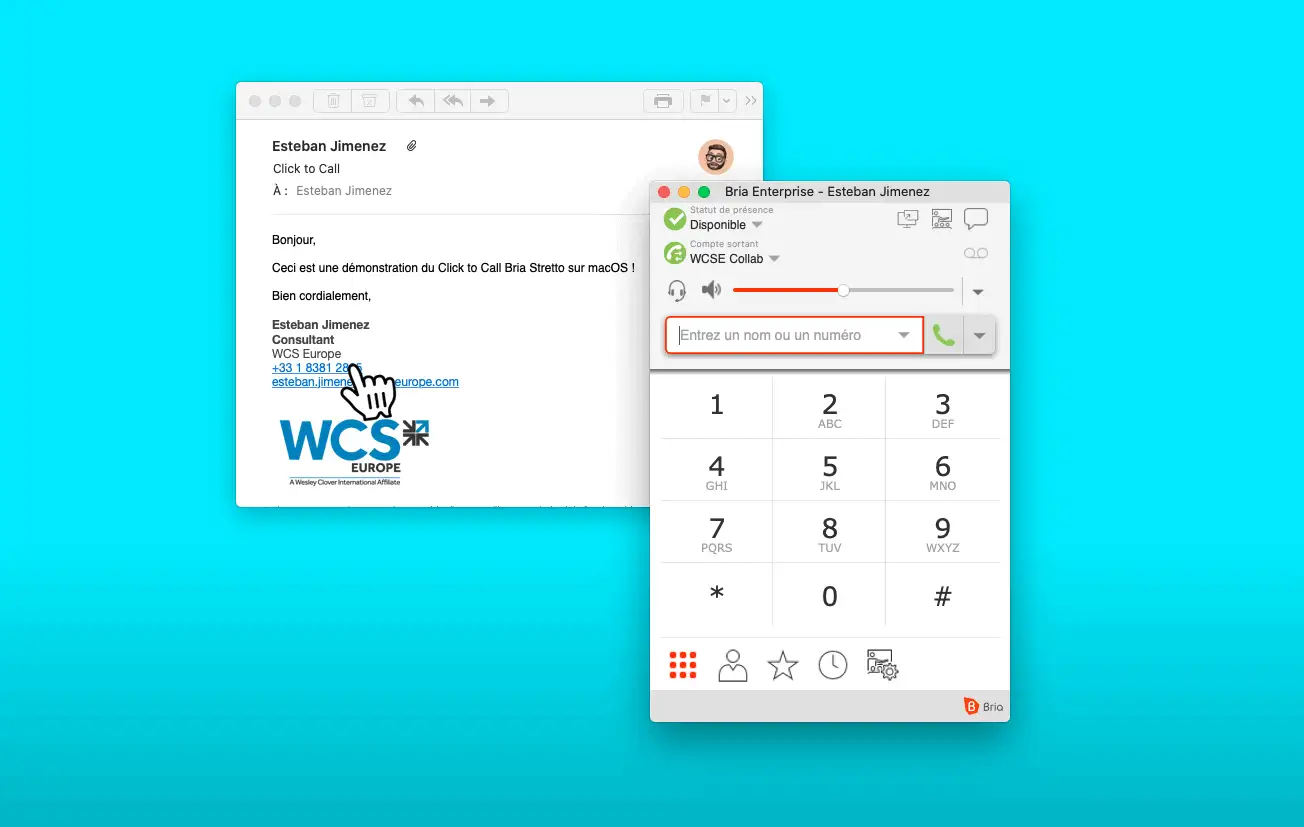
On macOS, the default application for making calls is FaceTime. When you click on a phone number from your Mac, it opens the FaceTime application, and dials the number using your iPhone's mobile network. Apple click-to-call therefore only works if you own an iPhone and your Mac is interconnected with your iPhone, both logged into the same Apple account. To find out more, please consult Apple's technical documentation.
Bria Enterprise simplifies this behavior, allowing you to make calls directly from your computer using your business line, simply by clicking on a phone number.
To do this, you need to set Bria Enterprise as the default application for calls made from your Mac.
Here's how it works:
1. Open the FaceTime application
You can open the application by using Spotlight (⌘cmd + Space) and typing "FaceTime" then validate by pressing the ↲Enter key.
You can also open the application via Launchpad.

2. Open the "FaceTime" menu, then click on "Preferences".
You can open the application by using Spotlight (⌘cmd + Space) and typing "FaceTime" then validate by pressing the ↲Enter key.
You can also open the application via Launchpad.

3. Set Bria as default application
In the "Default call settings" menu, FaceTime is selected. Change this value by selecting "Bria Enterprise".
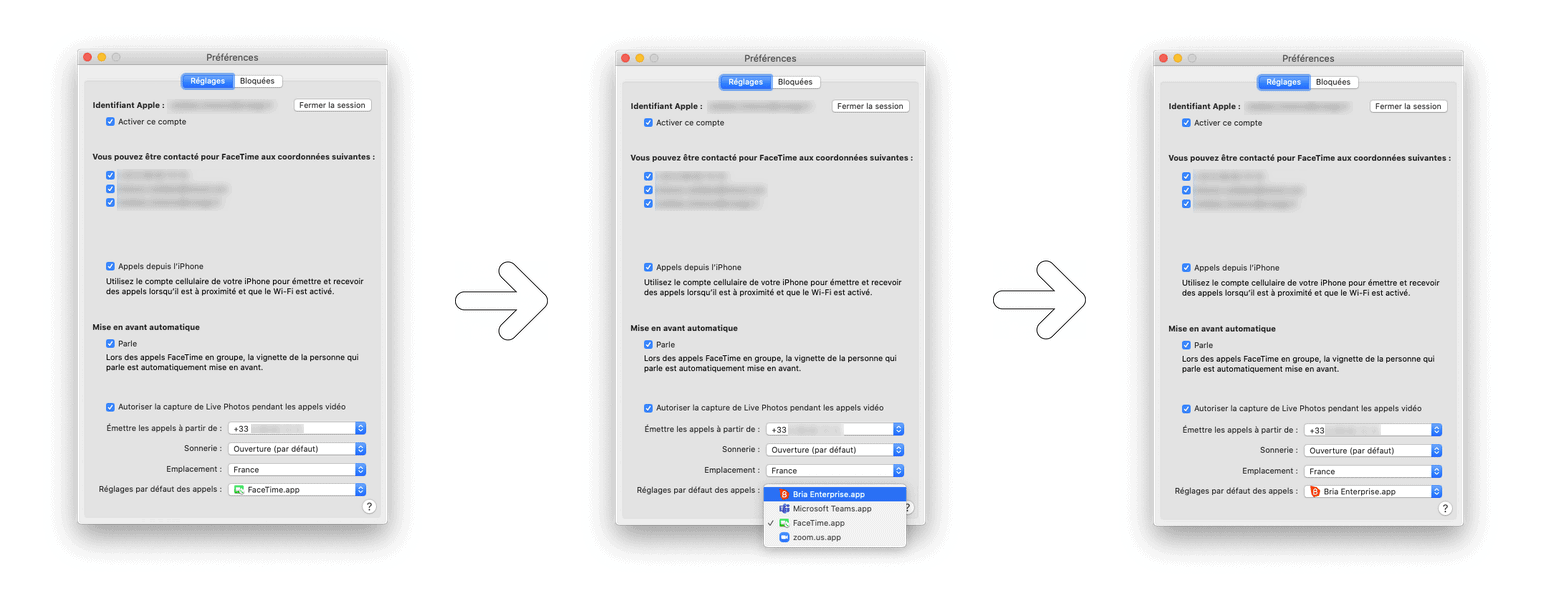
4. Bria is now configured as the default tool for calls made from your Mac.
So you can :
- Click on a phone number (clickable link) in an e-mail or on a web page.
- Highlight a number with your mouse. macOS recognizes a phone number; a box appears around the number. Click on the arrow to the right of this box and click on "Call +33 X XX XX XX XX from iPhone" (this is the default message on macOS, the call will be made with Bria Enterprise).
